
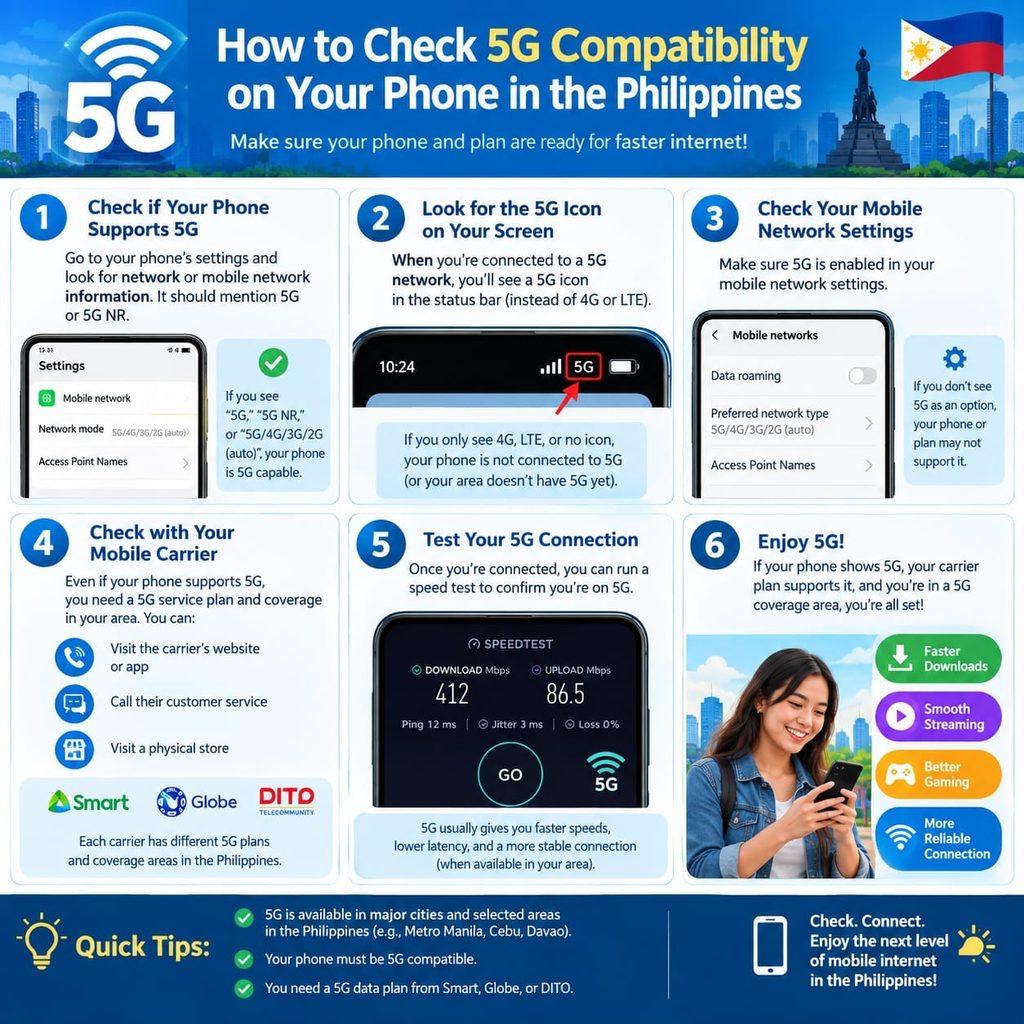
5G is becoming an important part of mobile connectivity in the Philippines, offering faster data speeds, lower latency, and better performance in areas with compatible network coverage. However, having a 5G SIM or being in a 5G-covered location does not automatically mean your phone can connect to 5G in primogaming88.
Your smartphone also needs to support 5G technology and the network bands used by your mobile provider. In some cases, a phone may be marketed as a 5G device but still have compatibility limitations depending on its model, region, software, SIM, or carrier.
So, how can you check if your phone is 5G compatible in the Philippines?
The easiest approach is to check your phone’s exact model, look for 5G network settings, confirm compatibility with your mobile network, and test the connection in an area with 5G coverage.
What Does 5G Compatibility Mean?
Primo gaming 88 5G compatibility means that a smartphone is technically capable of connecting to a 5G mobile network.
There are several factors behind this. The phone needs a 5G-capable modem, appropriate supported network bands, compatible software, and access to a carrier’s 5G service. The mobile network also needs to support the device.
This is why simply seeing “5G” in a phone’s product name is not always enough. Different versions of the same smartphone can have different specifications depending on the market where they were sold.
For example, a phone purchased overseas may support 5G technology but may not work correctly with every 5G network in the Philippines.
1. Check Your Phone’s Exact Model
The first step is identifying the exact model of your smartphone.
Go to your phone’s settings and look for information such as:
- Model name
- Model number
- Device name
- IMEI information
- Software version
On many Android phones, you can find this under Settings > About Phone. The exact menu can vary depending on the manufacturer.
On an iPhone, you can normally check the model information under Settings > General > About.
The exact model number is especially useful because a manufacturer’s phone name may cover several regional versions.
Once you know the exact model, visit the manufacturer’s official website and check the technical specifications. Look for 5G, NR, or a list of supported mobile network technologies and bands.
2. Look for 5G in Your Network Settings
Another simple way to check is by looking at your phone’s mobile network settings.
On many Android smartphones, the option can be found through a path similar to:
Settings > Connections or Network & Internet > Mobile Network > Preferred Network Type
Look for options such as:
5G/4G/3G/2G Auto
or
5G Preferred
The wording differs between phone brands and software versions.
For iPhone users, Apple provides a 5G setting under:
Settings > Cellular > Cellular Data Options > Voice & Data
If the phone supports 5G and the carrier configuration allows it, a 5G option may appear. Smart also provides similar guidance for enabling 5G on Android and iPhone devices.
However, the absence of a 5G option does not always provide a definitive answer by itself. Your SIM, software, carrier settings, or regional phone configuration can affect what appears in the settings.
3. Check Your Mobile Network’s Compatible Device List
One of the most reliable ways to check 5G compatibility in the Philippines is to use your network provider’s official compatibility information.
For example, Smart publishes a list of Smart-certified 5G devices that have been tested and verified for its 5G network. Its published list includes models from brands such as Apple and Samsung.
DITO also maintains a list of 5G-compatible handsets. The provider states that its listed phones have been quality checked for compatibility with its 5G network and that it cannot guarantee 5G service for unlisted devices.
This distinction is important.
A smartphone can technically support 5G but still need to be confirmed as compatible with a particular Philippine network. Checking the carrier’s information can help you avoid confusing general 5G capability with actual network compatibility.
4. Check Whether Your SIM Is 5G Ready
Your phone may support 5G, but the SIM and account also matter.
For Globe users, Globe says customers can check whether their SIM is LTE/5G-ready by texting SIM CHECK to 8080. Globe also notes that users can confirm whether the phone is showing LTE or 5G in the signal bars and whether the SIM has 128K memory.
If your phone is 5G-capable but your SIM is outdated, upgrading the SIM may be necessary.
This is particularly important when troubleshooting. Before assuming that your smartphone is defective, check the phone, SIM, account, and network coverage individually.
5. Check 5G Network Bands
For users who want a more detailed compatibility check, looking at supported 5G frequency bands can provide additional information.
A phone’s technical specification may list several 5G bands using labels such as:
- n1
- n28
- n41
- n77
- n78
These are examples of 5G New Radio band designations.
The important point is that not all 5G phones support exactly the same bands. A smartphone designed for one market may have a different band configuration from a similar model sold in another country.
This is one reason imported smartphones can sometimes produce compatibility problems.
Before buying an imported 5G phone, compare the exact model number and supported bands with your intended Philippine network.
6. Make Sure Your Phone Software Is Updated
Software and carrier settings can also affect network connectivity.
Manufacturers and mobile providers periodically release updates that improve compatibility, stability, security, and network performance.
Check whether your smartphone has an available system update, then restart the device after installing it.
On iPhone, carrier settings updates can also be relevant. Smart’s troubleshooting guidance, for example, includes specific carrier-setting and software requirements for certain older iPhone models when connecting to Smart 5G.
Keeping the operating system and carrier configuration current is therefore a useful step before concluding that your phone cannot connect to 5G.
7. Check Whether 5G Is Available in Your Area
Having a 5G-compatible phone does not mean the phone will display 5G everywhere.
Your location still needs to have compatible 5G coverage.
Smart specifically identifies having an active 5G area as one of the requirements for connecting to Smart 5G.
Physical surroundings can also affect cellular performance. Buildings, walls, congestion, distance from a cell site, and other environmental factors can influence the quality of a mobile connection.
For that reason, test your phone in a location where your carrier confirms 5G availability.
8. Look at the Network Indicator
One of the easiest real-world tests is simply checking the signal indicator at the top of your phone.
Depending on your device and carrier, you may see indicators such as:
5G
5G+
5G UC
or another carrier-specific label.
The exact icon varies by phone and network.
Globe notes that users can check whether their phone displays LTE or 5G in the signal bars as one way to assess network connectivity.
Keep in mind that the icon alone should not be treated as a complete technical test. A phone can temporarily switch between network technologies depending on coverage and network conditions.
9. Test Your Connection Speed
After confirming that your phone is connected to 5G, run a mobile internet speed test.
This can help determine whether the connection is performing as expected.
However, speed should not be the only measure of 5G compatibility. Network congestion, signal strength, server location, data plan limitations, device settings, and coverage conditions can all influence test results.
A slower-than-expected result does not necessarily mean that your phone is not compatible with 5G.
Instead, use a speed test together with the phone’s network indicator and your carrier’s coverage and compatibility information.
What If Your Phone Supports 5G but Still Shows 4G?
This is a common situation and does not automatically mean that your phone is incompatible.
There are several possible reasons.
Your location may not have 5G coverage. Your SIM may require an upgrade. The phone may have 5G disabled in its network settings. The device may be an incompatible regional version. The carrier may not have certified that particular model. Your software or carrier settings may also need an update.
Globe’s troubleshooting guidance similarly notes that outdated SIM cards or devices can cause compatibility problems with newer network technologies.
Start with the simplest checks:
Confirm the phone model → check the 5G setting → verify the SIM → check carrier compatibility → check coverage → update software → test again.
This approach can help identify the issue without immediately replacing the phone.
How to Check 5G Compatibility Before Buying a Phone
If you are planning to purchase a new smartphone, checking 5G support before buying can save you from future connectivity problems.
Start by finding the exact model number rather than relying only on the phone’s marketing name.
Next, review the manufacturer’s technical specifications. Check the 5G bands supported by that particular model and compare them with your intended Philippine network.
Finally, check the mobile provider’s current compatible-device information.
This is especially important when buying phones from international sellers or importing devices from another country.
DITO, for example, publishes a specific list of devices that it has quality checked for 5G compatibility and warns that it cannot guarantee 5G service for unlisted devices.
Does a 5G Phone Need a 5G SIM?
Not necessarily in every situation, but the SIM and carrier requirements can affect whether you can actually access a provider’s 5G service.
A phone can have 5G hardware while the SIM or account setup prevents access to 5G.
For that reason, users should check their network provider’s current SIM requirements rather than assuming that every older SIM will automatically provide 5G.
Globe, for instance, provides a specific SIM-check process and says customers can request a 5G-ready SIM when needed.
Why 5G Compatibility Matters in the Philippines
Mobile internet has become essential for work, communication, entertainment, online learning, navigation, banking, and other everyday activities.
As Philippine mobile networks continue expanding and upgrading their infrastructure, having compatible equipment becomes increasingly important.
A 5G-capable smartphone can potentially provide a better mobile broadband experience when the phone, SIM, network, location, and account are all compatible.
At the same time, consumers should not assume that buying the most expensive 5G phone automatically guarantees the best connection.
Network coverage and local conditions remain important.
Frequently Asked Questions About 5G Compatibility
How do I know if my phone is 5G compatible?
Check your phone’s exact model number, review the manufacturer’s specifications, look for a 5G option in network settings, and verify the model against your mobile provider’s compatibility list.
Can a 4G phone connect to 5G?
No. A phone needs hardware capable of connecting to a 5G network. Changing a setting or upgrading a SIM cannot turn a 4G-only phone into a 5G device.
Why does my 5G phone only show 4G?
The most common possibilities include unavailable 5G coverage, an incompatible SIM, disabled 5G settings, software issues, or device/carrier compatibility limitations.
How can I check if my SIM is 5G ready?
Check your mobile provider’s official instructions. For Globe, users can text SIM CHECK to 8080 to check SIM readiness.
Does every 5G phone work with every Philippine network?
Not necessarily. Compatibility can depend on supported bands, device variants, carrier certification, software, SIM requirements, and network availability.
Is 5G automatically faster than 4G?
5G is designed to support higher speeds and lower latency, but the actual experience depends on network conditions, coverage, congestion, device capability, and other factors.
Final Thoughts
Checking 5G compatibility on your phone in the Philippines does not have to be complicated. Start by identifying your exact phone model, check whether 5G is available in your network settings, verify your SIM, and compare the device with your carrier’s official compatibility information.
You should also check 5G coverage in your location and keep your device software updated.
Most importantly, remember that 5G compatibility is a combination of the phone, network, SIM, software, and location. A smartphone can be advertised as 5G-ready and still require additional checks before it can connect successfully to a particular Philippine network.
Taking a few minutes to verify these details can help you get the most from your device and avoid unnecessary upgrades or troubleshooting.