
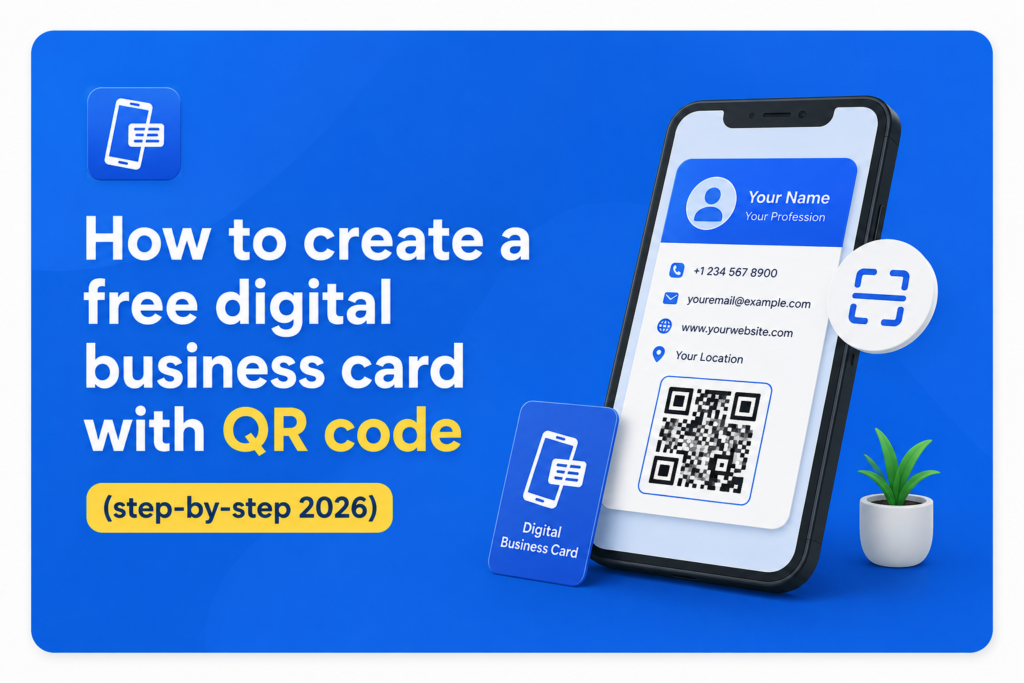
Picture this. You are at a networking event, someone asks for your contact details, and instead of digging through your bag for a paper card you simply open your phone, show a QR code, and they have everything they need in under five seconds. No printing. No carrying. No “sorry I ran out of cards.”
That is the power of a digital business card with QR code and the best part is you can create one completely free in just a few minutes. This guide walks you through exactly how to do it, step by step.
What Is a Digital Business Card With QR Code?
A digital business card is an online profile that holds all your professional contact information, your name, job title, phone number, email, website, and social media links in one shareable place. Instead of handing someone a piece of paper, you share a link or a scannable QR code that opens your profile directly in their phone browser.
The smartest approach in 2026 is to skip standalone QR generators and create a free digital business card that auto-generates a QR code linked to a living profile you can update anytime no app needed for you or the person scanning it.
The person receiving your card does not need to download anything. They scan, they see your details, they save your contact. Done.
Why You Need a Digital Business Card With QR Code in 2026
Before we get into the how, let us quickly cover the why because understanding this will help you set up your card the right way.
Paper cards get lost, go out of date, and cost money every time you reprint them. A virtual business card solves all three problems at once. You update your information once and everyone who has your link or QR code automatically sees the latest version. No reprinting. No confusion.
Unlike the limited number of physical cards one may carry, a digital business card with QR code allows limitless sharing via email, text, social media, or direct in-person conversation anytime and anywhere.
For professionals who attend events, send emails, or post on LinkedIn regularly, that kind of reach is genuinely valuable. And because platforms like ShareEcard let you create a free digital business card without any technical knowledge, there is no barrier to getting started today.
What You Need Before You Start
Creating your digital card takes under five minutes. Before you begin just have these things ready:
- Your full name and job title
- Phone number and email address
- Company name and website URL
- Links to your LinkedIn, Instagram, or other social profiles
- A professional headshot or profile photo
- Your company logo if you have one
That is everything. No design skills needed. No coding. No experience required.
Step-by-Step: How to Create a Free Digital Business Card With QR Code
Step 1: Choose Your Platform
The first step is choosing where to create your electronic business card. Look for a platform that offers a free plan, includes a QR code automatically, requires no app download for the recipient, and lets you update your information anytime.
ShareEcard is built exactly for this. It gives you a free digital business card with a QR code included, works on any device, and takes minutes to set up. No credit card required and no hidden fees.
Step 2: Sign Up and Start Your Profile
Go to your chosen platform and create a free account. Most platforms only ask for your email address to get started. Once inside you will land on a profile creation page where you fill in your details.
Enter your:
- Full name and professional title
- Contact number and email
- Company name and website
- Social media profile links
- A short professional bio two or three sentences describing what you do
Keep your bio simple and direct. Think of it as your elevator pitch in text form. Something like: “Sales manager at XYZ Company helping B2B businesses grow their revenue through strategic partnerships.”
Step 3: Upload Your Photo and Customize Your Design
This step is where your digital card starts to look professional. Upload a clear headshot ideally a square photo with good lighting and a clean background.
You can also add links to your website, social media profiles, and portfolio to make your card a complete professional snapshot.
Then customize your card’s appearance. Most platforms offer color options, layout choices, and the ability to add your company logo. Choose colors that match your brand or keep it clean and minimal both work well. The goal is to look professional and make it easy for the recipient to find your contact button immediately.
Step 4: Your QR Code Is Generated Automatically
Here is the part most people find surprisingly satisfying. Once you complete your profile your platform automatically generates a unique QR code linked directly to your digital card.
You do not need to do anything extra. The QR code is ready to use immediately. You can:
- Display it on your phone screen for someone to scan in person
- Download it as an image and add it to your email signature
- Print it on the back of an existing paper card as a bridge solution
- Add it to your LinkedIn profile, website, or presentation slides
- Share it directly in WhatsApp, iMessage, or any messaging app
Your business partners and contacts can access your details and further information with just one scan and save your contact directly to their phone.
Step 5: Share Your Digital Card
Now your contactless card is live and ready to share. Here are the most effective ways professionals use it:
In person at events: Pull up your QR code on screen and let people scan it. It takes three seconds and leaves a memorable impression.
In your email signature: Add your QR code image or a link button to your email signature. Every email you send becomes a networking opportunity.
On LinkedIn: Add your digital card link to your LinkedIn profile’s contact section or featured links area.
On video calls: Share your screen for two seconds and let people scan your QR code directly from their monitor.
In WhatsApp messages: Send your card link to new contacts the moment you connect with them.
Step 6 Keep Your Card Updated
This is the step that makes a digital card genuinely better than paper. Whenever anything changes, new job, new number, new website, log back into your platform and update your profile.
Your QR code and link stay exactly the same. Everyone who has ever saved or scanned your card now automatically sees the updated information. No reprinting. No reaching out to update people manually. No outdated cards floating around doing damage to your professional image.
Tips to Make Your Digital Business Card Stand Out
Creating a card is one thing. Making it work hard for you is another. Here are a few things that make a real difference:
Use a real photo
Profiles with a clear headshot get significantly more saves and follow-ups than those without one.
Keep your bio focused
One clear sentence about what you do and who you help is more powerful than a long paragraph nobody reads.
Add your most used social link
If you are most active on LinkedIn add LinkedIn first. If Instagram is your main platform, put that front and center.
Test your QR code before sharing it
Scan it yourself on a different phone and make sure everything looks right and all your links work correctly.
Add it to your email signature today
This makes every email you have sent a passive networking tool.
Frequently Asked Questions
What is the easiest way to create a free digital business card with QR code?
The easiest way is to use a platform that handles everything in one place, profile creation, design, and QR code generation. ShareEcard lets you build and share a complete free digital business card with QR code in under five minutes with no technical skills needed.
Do I need an app to share my digital business card? No.
The best digital business card platforms generate a simple link and QR code that anyone can open in their phone browser. The person receiving your card does not need to download anything at all.
Can I update my digital business card after creating it?
Yes and this is one of the biggest advantages over paper cards. You can log in and update your information anytime. Your QR code and link stay the same so everyone who has it always sees your current details.
Is a free digital business card professional enough to use with clients?
Absolutely. A well-designed virtual business card looks more professional than a paper card in most situations. It shows you are organized, tech-aware, and up to date with how modern professionals network.
What information should I include on my digital card?
At minimum include your name, job title, phone number, email, and one social profile link. You can also add your company website, a short bio, your logo, and links to your portfolio or booking page.
Can I print my digital business card QR code?
Yes. You can download your QR code as an image and print it anywhere on the back of a paper card, on a badge, on a brochure, or even on a banner at your trade show booth.
How do I share my digital business card at a networking event?
Simply open your digital card on your phone and show the QR code. The other person scans it with their camera app and your full profile opens instantly. No app needed on their side.